To print the web page:
Your Internet browser's print feature will allow you to print the viewable area of the web page you are on.
- Click File in your browser.
- Click Print... from the drop-down menu.
A standard Print window opens. If needed, change your print settings. - Click Print.
You can also print a document before submitting it, as well as any time after submission.
To print a document:
- Open the document you wish to print.
- Click Print View
 at the top of the form, or Print View
 at the bottom of the form.
A Preview window opens, showing a print preview of the Invoice. - In the Preview window, right-click the Invoice, and select Print from the menu.
A standard Print window opens. If needed, change your print settings. - Click Print.
|
tip |
If you attempt to print the document shown in the Print Preview window directly from your browser, and nothing prints, you may have to configure your browser to do so. |
|
tip |
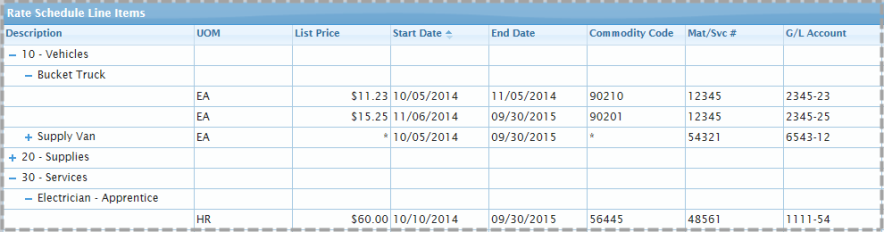
If the document being printed has expandable sections, the lines that you don't want printed can be collapsed by clicking on the
|
 icon next to the line heading.
|
NOTE |
Invoices, Invoice Responses, PO, and Rate Schedules will print in PDF format showing page numbers. |